How to deploy the Acronis Cyber Protect Agent
Windows Devices
1. Sign-in to the Acronis Cyber Protect dashboard (e.g. https://ca01-cloud.acronis.com/) with your account.
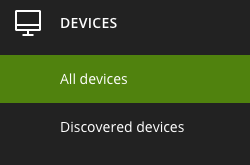
2. Navigate to Devices > All devices.
3. Click the + Add button on the top right corner of the dashboard to add a device.

4. In the fly-out pane, select the relevant device.

If you are installing the agent for a Windows virtual machine, you will want to look under SERVERS and choose Windows
5. Once have selected the device, the agent installer will begin to download.
6. Move the agent installer to the target machine and run the installation.
You can avoid having to move the agent if you sign-in to dashboard from the target machine itself.
7. Double-click on the installer (e.g. CyberProtect_AgentForWindows_web.exe).
8. Click on Install after being greeted with the setup screen.
9. Please wait 5-10 minutes for the installation to complete. After a successful installation, you will be asked to complete the setup by registering the workload. Choose between one of two options:
Option 1: Click on Register workload if you want to perform the registration by signing-in to the Acronis Cyber Protect dashboard on the target machine itself.
Option 2: Click on Show registration info if you cannot register directly on the target machine, or if you prefer to do it from a different machine. In this instance, copy the Registration link and input the Registration code from the other machine.

After a successful registration, you will be able to see the device in the dashboard under Devices > All devices.
Related Articles
How to Deploy a Windows Virtual Machine
1. Sign-in to your VHI dashboard. 2. Navigate to the Compute > Virtual machines section. 3. Click on + Create virtual machine. 4. Supply a name for the machine. 5. Next to Image, click Specify to choose a Windows image from the selection page ...